
Hardware
Suphacap 2
Z-Wave troubleshooting with channel hopping.
See nearby Z-Wave Classic traffic in a familiar serial terminal. Follow the configured channels with optional hopping, or stay on a fixed channel and filter by network, node or command class.

Included with Suphacap 2
Your familiar Capture workflow, with channel hopping.
Suphacap 2 ships with the established Suphacap Capture interface: connect by USB, open a serial terminal and inspect nearby Z-Wave Classic traffic. It keeps the straightforward workflow of the original Suphacap and adds optional channel hopping.
Follow the channels
Switch on channel hopping to follow your selected region’s configured channels in sequence. Keep a fixed channel when you want to focus on traffic there.
Find the traffic you need
Filter by Home ID, node ID or command class. Narrow a busy capture to the network, device or type of message you are investigating.
Use a serial terminal
Read live traffic on Windows, macOS or Linux at 115200 baud. A dedicated capture application is not required for the supplied Capture firmware.
From USB to live traffic
01
Connect Suphacap 2
Plug it into a USB-A port. Install the Silicon Labs USB-to-UART driver if your operating system requires it.
02
Open the terminal
Select the device’s serial port and connect at 115200 baud, 8 data bits, no parity and 1 stop bit.
03
Choose what to follow
Open settings with c and choose the supported region for your network. Capture starts on a fixed channel; press f to toggle hopping.
See the traffic. Find what matters.
Examples from the familiar Capture terminal interface. Select an image to open it at full size.
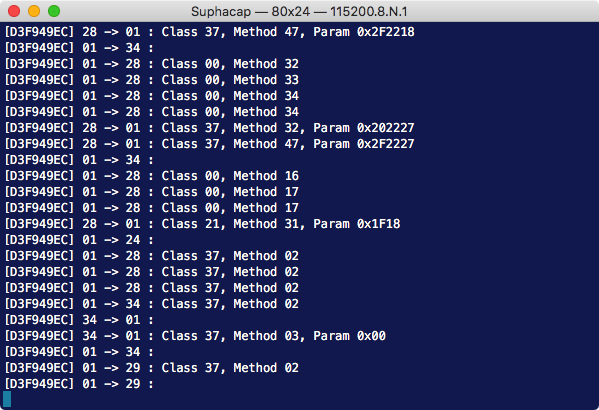
See nearby traffic
Start with an unfiltered view before narrowing your investigation.
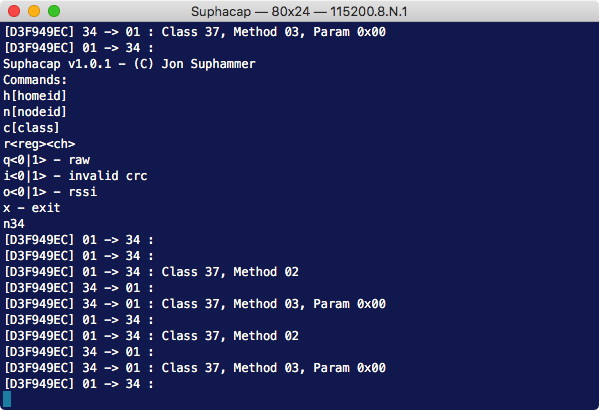
Focus on a device
Follow the node you are troubleshooting.
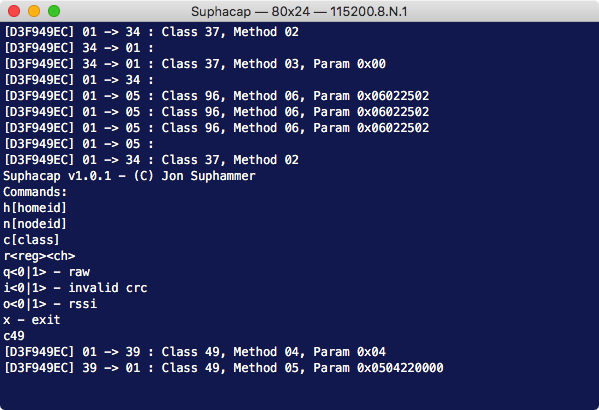
Filter the messages
Reduce the view to the command class you need to inspect.
Under development
New firmware for specialized tasks
The Suphacap 2 platform is also being developed for other radio and integration tasks. These projects use separate firmware profiles, installed one at a time.
More capture workflows
Native Zniffer provides a binary Z-Wave capture interface for compatible host tools. Multi Capture explores configurable receive diagnostics using raw bytes, pulse edges and signal-strength samples.
Sensors and meters
Wireless M-Bus focuses on receive-only meter monitoring. OOK Bridge explores selected 433 MHz sensor applications and Modbus RTU integration.
Integration experiments
Work is also underway on Z-Wave controller integration, Somfy RTS monitoring and an experimental Z-Wave-to-RTS bridge.
The supplied firmware is Capture with optional channel hopping. Alternative profiles remain in development and are subject to hardware and compatibility validation. Supported devices, availability and any separate licensing or pricing will be announced with each release.
Setup and support
Own an original Suphacap? Visit the original Suphacap downloads and support archive for its manual, firmware and updater. Those firmware packages are for the original model.
USB driver
Suphacap 2 uses a Silicon Labs USB-to-UART interface. Linux normally includes the serial driver; Windows and macOS may require the vendor driver.
Firmware and help
Contact Suphammer for the correct Suphacap 2 update package, setup guidance or questions about an alternative firmware profile. Include the serial number printed on your device.
A few practical questions
What is included when I buy Suphacap 2?
The USB device comes with Suphacap Capture firmware and optional channel hopping. You can use the familiar terminal workflow immediately, with network, node and command-class filters.
Does hopping listen to every channel at the same time?
It follows the configured channels in sequence. One radio listens to one channel at a time. You can stay on a fixed channel for continuous attention to that channel.
Can I use it as a Z-Wave controller?
The supplied Capture firmware is a receive-only troubleshooting tool. Controller integration is a separate experimental firmware project under development.
How will alternative firmware be offered?
Specialized profiles may be offered as separate options. Availability, supported devices and any unlock fee will be confirmed when a profile is ready for release.
HERE TO HELP
Make the next connection.
Get help with compatibility, setup or an existing installation.