
Niagara software
Suphammer WLED
Put lighting under Niagara control.
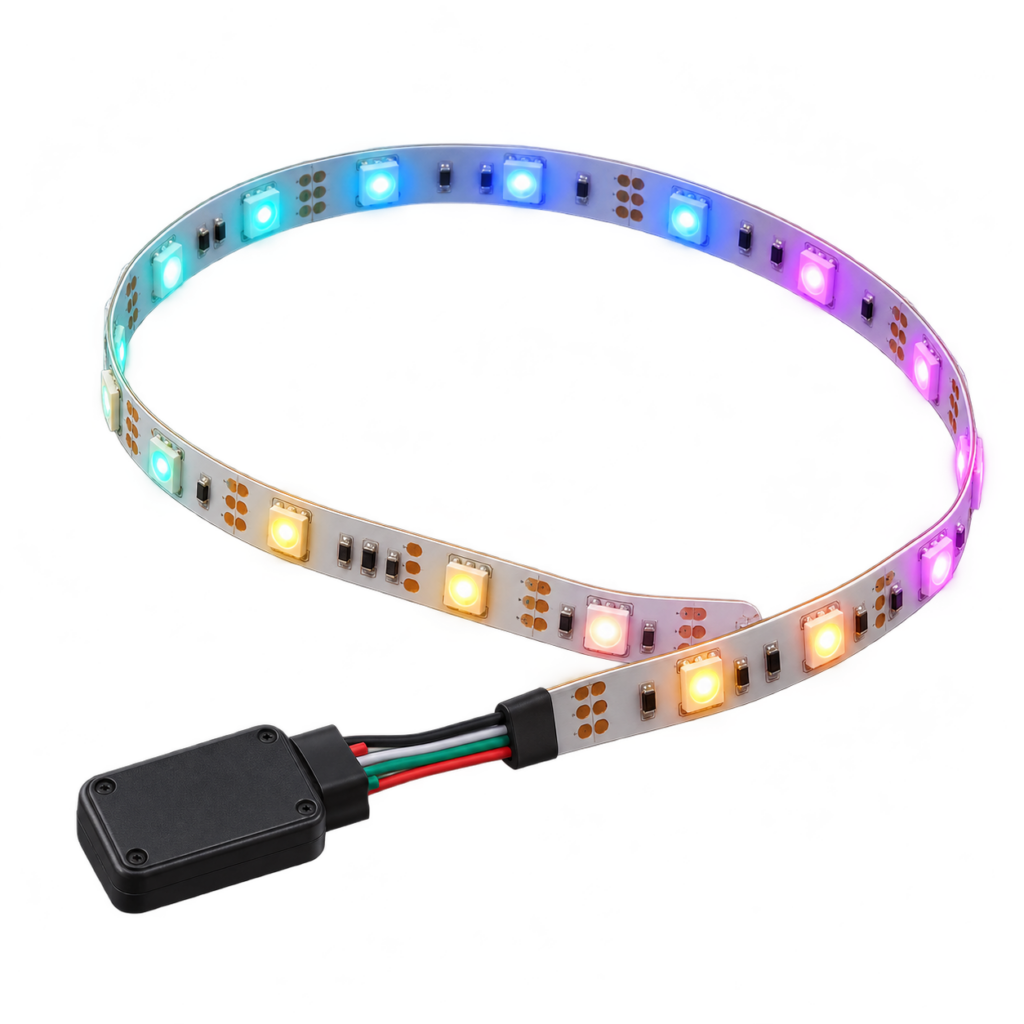
Control WLED lighting from Niagara with Power, Brightness, Color and Effect points. Local JSON API, device readback and one perpetual license per host.
01
Four useful controls
Power, Brightness, RGB Color and Effect, added through the Niagara point manager.
02
Local API and readback
Communicate through the local WLED JSON API and poll the device for current status.
03
Niagara priorities
Use familiar writable points and priority overrides. Release an override when another control should take over.
Lighting behavior that follows the building
Link an occupancy or schedule signal to Power, set Brightness for the operating mode, or choose a main-segment RGB color and effect from station logic. Power and Brightness apply to the whole device; Color and Effect target the configured main segment.
What you can use
| Point or definition | Behavior |
|---|---|
| Power | Whole-device Boolean on/off |
| Brightness | Whole-device level, 0–100% |
| Color | Main-segment RGB string, e.g. #12AB34 |
| Effect | Main-segment effect using the device’s effect IDs |
Compatibility and setup
Version 0.1.1 is qualified on Niagara 4.15.3.28 Supervisor for Windows 11; earlier macOS qualification covers 0.1.0. Physical verification used an ESP32-S3 with WLED 0.15.3 and 16.0.1. Other hosts, firmware versions and hardware require validation before deployment.
A configured WLED device with the JSON API reachable from the station; Niagara Workbench and module-install access. The guide covers HTTP port 80 (or your configured port), optional mDNS and Windows firewall rules.
Supported scope. This release provides the four controls listed above. RGB Color and Effect use the main segment; this is not a complete editor for every WLED setting or segment. WLED hardware, firmware and custom lighting commissioning are separate.
Included with your license
Install with confidence
- Protected, signed Niagara runtime
- Signed, searchable Niagara Help module
- Offline PDF user guide
- Installation and troubleshooting guidance
- Firewall and network instructions
One host. Perpetual license.
The license is bound to one Niagara Host ID and verified locally during operation. A completed purchase supplies an activation code.
Activate with your purchase email and Host ID at Suphammer license activation. Contact Suphammer before moving to a different host.
From purchase to first point
- Download and install. Use the included guide to install the modules in the required Niagara locations.
- Activate your host. Obtain the key for your Niagara Host ID and enter it in the product’s license property or service.
- Configure and verify. Follow the setup guide and check representative points or tags before connecting application logic.
Questions before you buy
Which segment do Color and Effect control?
The device’s configured main segment. Power and Brightness apply to the whole device.
Why can brightness remain visible while power is off?
WLED retains the configured brightness. Turning power back on restores a remembered positive level. Writing zero brightness turns power off; a positive value turns it on.
Can the points be monitoring-only?
Yes. Set the proxy Writable property to false. Normal Niagara priorities and overrides apply when writing is enabled.
Do I need cloud access for lighting control?
No cloud service is used for routine device control. The station talks to the local WLED JSON API and validates its installed license locally.
Software download for Niagara. Hardware, site commissioning and custom application work are separate. Current release: 0.1.1. Current prices and offers are shown above. Applicable tax is calculated at checkout.
HERE TO HELP
Make the next connection.
Get help with compatibility, setup or an existing installation.